1080p LED Projector Guide: Auto Keystone & Bluetooth
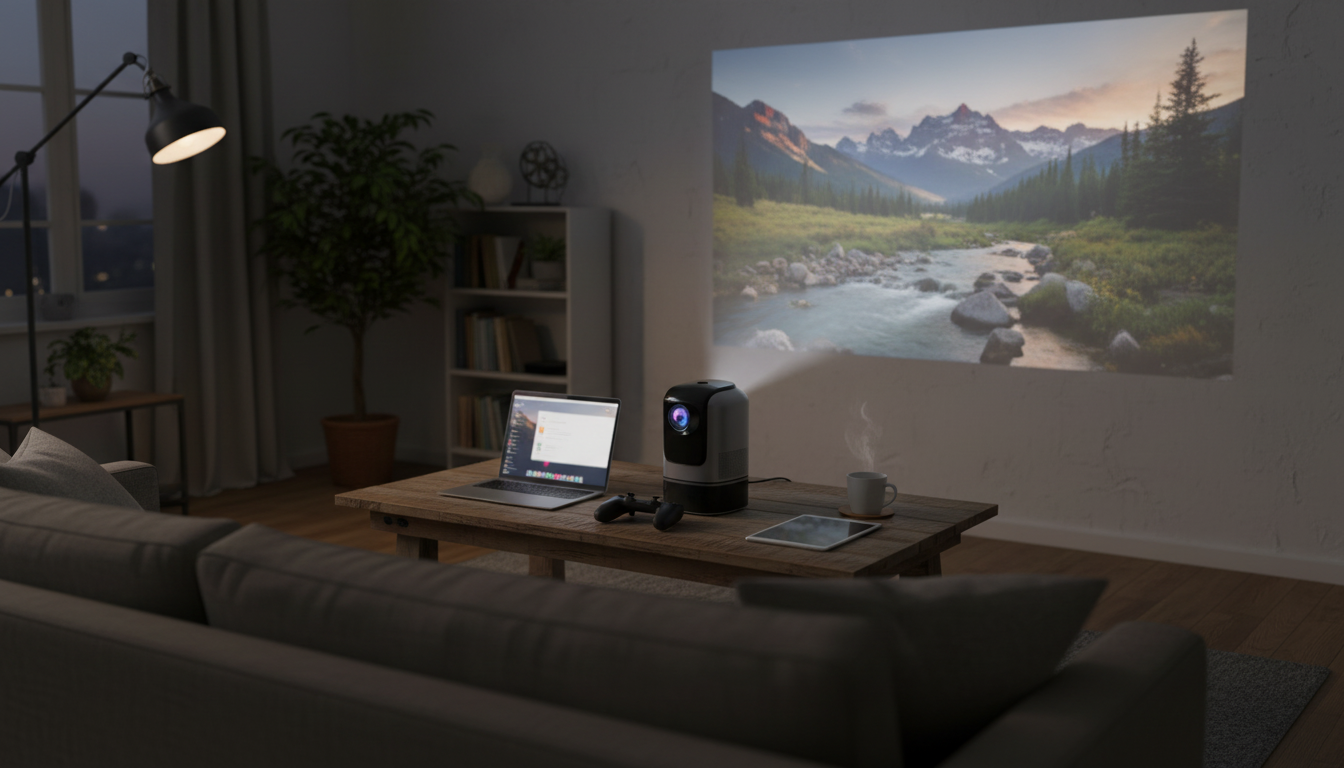
Full HD 1080P LED Home Theater Projector with Auto Keystone & Bluetooth
A home theater projector should make setup painless, deliver a sharp 1080p picture, and connect easily to the devices already in use. This guide breaks down what matters most—image clarity, auto keystone alignment, Bluetooth audio options, and practical placement—so the projector can go from box to big-screen movie night with minimal trial and error.
If you’re shopping for a straightforward big-screen upgrade, the Full HD 1080P LED Home Theater Projector with Auto Keystone & Bluetooth is designed around the essentials: clear Full HD detail, faster alignment, and flexible audio that helps keep cable clutter under control.
What makes this projector a good fit for a home theater
- Full HD 1080p resolution keeps movies, sports, and games looking crisp at larger sizes—especially when the source is true 1080p.
- LED light source advantages include consistent color over time, lower heat output, and less upkeep versus traditional lamp replacements.
- Auto keystone speeds up alignment when the projector can’t be perfectly centered on the screen.
- Bluetooth support makes it easier to pair to a soundbar, speakers, or headphones, which can simplify the room setup.
- Room-to-room flexibility works well for bedrooms, living rooms, and casual backyard-style viewing when paired with an appropriate screen and audio choice.
Key features to look at before buying
Resolution and scaling
Native 1080p is a strong sweet spot for home entertainment because it holds detail on big images. For the sharpest results, confirm your streaming stick, console, or laptop is outputting a compatible resolution and not forcing a lower-quality mode.
Keystone and focus
Auto keystone helps square the image quickly, but manual focus still determines how clean text and fine edges look—especially toward the corners. After keystone runs, spend a moment fine-tuning focus with a menu screen or subtitles.
Connectivity planning
Most home setups revolve around HDMI: streaming sticks, consoles, Blu-ray players, and laptops. HDMI standards and capabilities are outlined by the official licensing body at HDMI.org. Decide early whether audio will go Bluetooth to a soundbar or follow a wired path via your source device.
Bluetooth audio: convenience vs. latency
Bluetooth is excellent for quick movie-night pairing, but latency can vary by device and codec. The Bluetooth SIG provides a helpful overview of the technology at Bluetooth.com. If you notice lip-sync issues or you’re playing timing-sensitive games, consider routing audio through a wired connection from the console, TV, or receiver instead.
Room conditions
Darker rooms make any projector look better because perceived contrast improves. If you can’t control ambient light, prioritize light control (curtains, dimmable lamps, reduced reflections) and consider a proper screen rather than a textured wall.
At-a-glance setup checklist
- Pick a throw position: Place the projector so the image fills your screen without relying on extreme keystone correction.
- Level the projector: Use a stable surface or mount; small tilts can noticeably skew image geometry.
- Connect video first: Plug in HDMI from a streaming device/console/laptop, then select the correct input.
- Square the picture: Run auto keystone, then improve alignment by repositioning instead of heavy digital correction.
- Adjust focus: Focus using on-screen text near corners to confirm uniform sharpness across the image.
- Set audio routing: Choose Bluetooth speaker/soundbar, a wired output (if available), or audio from the source device.
Feature summary table: what each feature does in real use
Use the table below to connect each feature to everyday scenarios like movie night, casual gaming, or occasional at-home presentations. If you plan to use Bluetooth audio, test with a familiar scene and adjust A/V sync settings on your soundbar or source device if needed.
| Feature | What it helps with | Best-use tip |
|---|---|---|
| Full HD 1080p | Sharper picture and more readable text at larger sizes | Feed it a high-quality 1080p source and avoid excessive digital zoom |
| Auto keystone | Faster alignment when placement is off-center or angled | Use it for minor corrections; reposition for best overall clarity |
| Bluetooth | Easy connection to soundbars/speakers/headphones | For gaming, consider wired audio if latency is noticeable |
| LED light source | Lower maintenance and steadier performance over time | Ensure good ventilation to maintain brightness and longevity |
| HDMI input | Simple hookup for consoles, streaming sticks, and laptops | Use a quality HDMI cable and set the correct output resolution on the source |
Placement and picture quality tips that make the biggest difference
If you’re unsure how throw distance relates to screen size, the practical guides at ProjectorCentral can help you plan placement before you commit to a mount or furniture layout.
Audio options with Bluetooth and common connection patterns
Bluetooth to a soundbar or speakers
Bluetooth headphones for late-night viewing
Console gaming considerations
A reliable everyday chain
In-stock picks to complete the setup
- Full HD 1080P LED Home Theater Projector with Auto Keystone & Bluetooth — the core of an easy big-screen setup with quick alignment and flexible audio.
- Portable USB Ultrasonic Aroma Diffuser & Air Humidifier with Colorful Nightlight — a simple add-on for a cozier movie-night vibe, especially in bedrooms or smaller media corners.
FAQ
Does auto keystone reduce image quality?
It can slightly soften the image because keystone is a form of digital correction. For the best clarity, position the projector as square to the screen as possible and use auto keystone only for small adjustments.
Can Bluetooth audio have lip-sync delay?
Yes, delay can happen depending on the paired devices and Bluetooth mode being used. If it’s noticeable, try audio sync settings on your source or soundbar, or use a wired audio option for gaming and fast-action content.
What’s the easiest way to connect a streaming stick or console?
Use HDMI for video and select the correct input on the projector. For audio, pair a Bluetooth soundbar/headphones or route sound from the source device using a wired connection if you run into delay or pairing issues.


Leave a comment